On this page
- WooCommerce to Shopify migration at a glance
- Phase 1: audit everything before you migrate WooCommerce to Shopify
- What moves, and how: the WooCommerce to Shopify data map
- Phase 2: build the store and import in the right order
- Shopify migration SEO: building the redirect map
- Customer accounts and passwords after the move
- Phase 4: the cutover runbook for launch week
- The Shopify migration checklist we use
- Migration apps vs a migration partner
- Frequently asked questions
- What we’d do first
Most WooCommerce stores that come to us for a move are not broken. They are tired: rising hosting bills, a plugin update that takes checkout down on a Friday, more hours patching WordPress than selling. Shopify fixes most of that. A careless move can still undo years of SEO work.
A WooCommerce to Shopify migration has three jobs: move the data, rebuild what plugins used to do, and protect your search traffic with a full redirect map. For a typical store with a few hundred to a few thousand products, it takes 6 to 10 weeks from audit to launch. Below is the step-by-step checklist we work from, with the data mapping, the URL patterns that change, what cannot be moved at all, and a launch-week plan you can copy.
Key takeaways
- Import in order: products first, then customers, then historical orders, so orders link to the right records.
- Every WooCommerce product and category URL changes on Shopify.
/product/becomes/products/and/product-category/becomes/collections/, so you need a 301 redirect for each one. - Customer passwords never transfer. Since February 2026, new Shopify stores use one-time code sign-in, so that matters much less than it used to.
- Reviews, orders and subscriptions need an app or a vendor process. Shopify’s own CSV import covers products and customers only.
- Expect some ranking movement for a few weeks. A clean redirect map is what makes it a dip and not a drop.
WooCommerce to Shopify migration at a glance
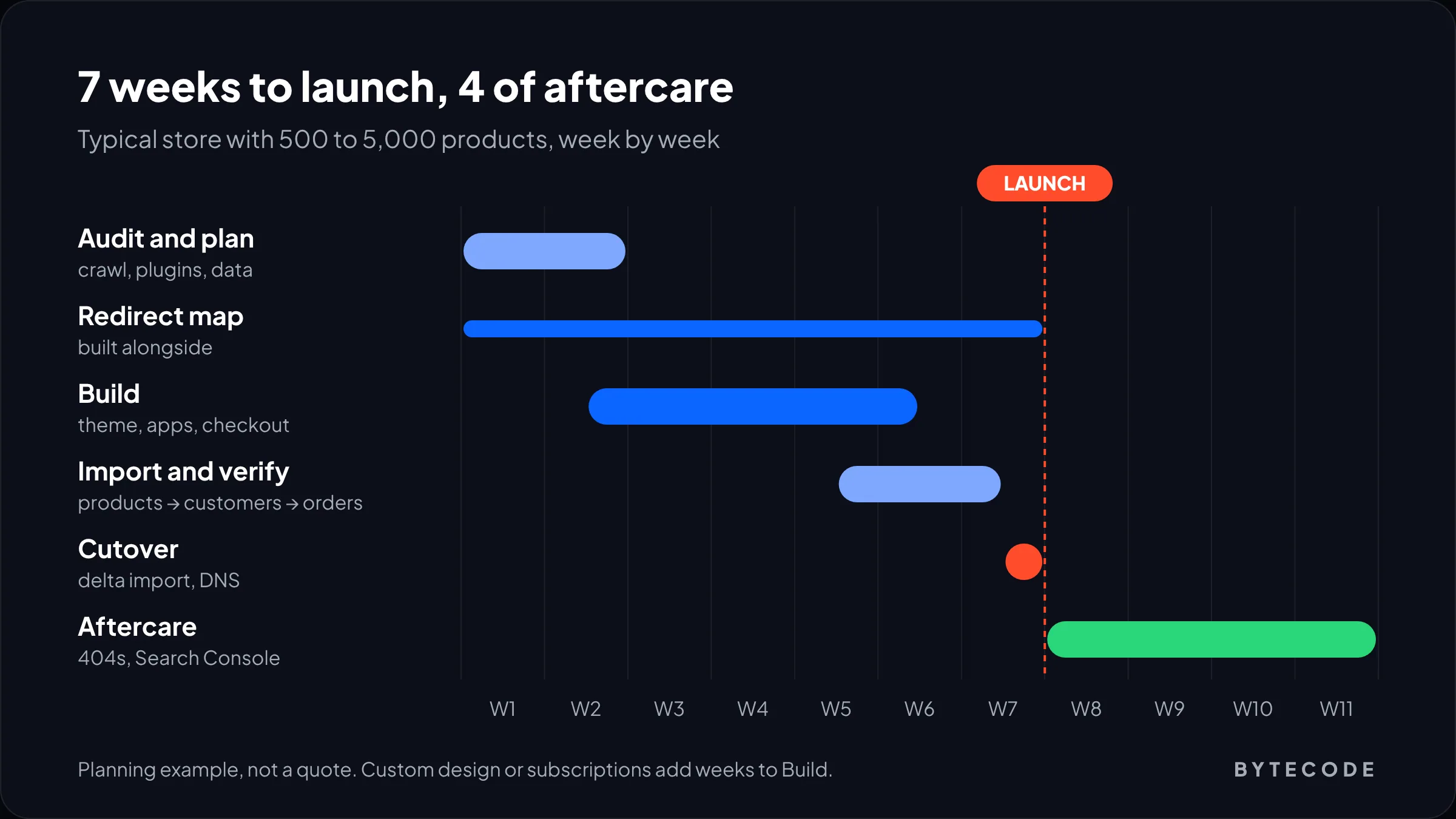
A WooCommerce to Shopify migration runs in five phases: audit, build, import, cutover and aftercare. The audit and the redirect map take more care than the data import itself. The table shows the planning ranges we use for a store with roughly 500 to 5,000 products and a handful of plugins. Treat them as starting estimates, not quotes.
| Phase | What happens | Typical duration | Main risk if rushed |
|---|---|---|---|
| 1. Audit and plan | Crawl old site, export Search Console data, list plugins, decide what moves | 1–2 weeks | Missing URLs that later 404 |
| 2. Build | Theme, navigation, apps that replace plugins, shipping, taxes, payments | 2–4 weeks | Features customers relied on quietly disappear |
| 3. Import and verify | Products, customers, orders, reviews, content, then spot checks | 1–2 weeks | Broken variants, wrong weights, duplicate customers |
| 4. Cutover | Delta import, redirects live, DNS switch, test orders | 2–5 days | Lost orders placed during the switch |
| 5. Aftercare | 404 monitoring, Search Console, fixes | 4 weeks | Ranking losses no one notices until month two |
Most of the variation comes from the build phase: a premium theme with light changes sits at the short end, a custom design with subscriptions and an ERP at the long end. Pricing depends on the same factors, which we break down in our Shopify development cost guide.
Phase 1: audit everything before you migrate WooCommerce to Shopify
Before you migrate WooCommerce to Shopify, inventory three things: every indexable URL, every plugin, and all the data you need to keep. Anything missed becomes a 404 or a missing feature after launch.
Crawl and export your URLs
Crawl the live store with Screaming Frog, Sitebulb or a similar crawler. Then export the Pages report from Google Search Console for the last 12 months, and pull landing pages from your analytics. Merge the three lists. The crawl finds what is linked. Search Console finds what Google still sends traffic to, including old URLs that are no longer linked anywhere. Those orphan pages are the ones that usually get missed. Keep the clicks and revenue columns so you can rank URLs by value later.
Map every plugin to a Shopify replacement
List each active plugin with what it does for customers and what replaces it on Shopify. On most WooCommerce stores we audit, about half the plugins simply disappear on Shopify (caching, security, backups, SSL, image compression). The rest need a decision:
- WooCommerce Subscriptions needs a Shopify subscription app and a planned move of active subscribers.
- Product add-ons and extra product options may need an app or metafields, especially past three options (more on that below).
- Yoast or Rank Math settings do not transfer. Export titles and meta descriptions so you can reapply them.
- Custom checkout fields need checkout UI extensions on Shopify, and some only work on Plus.
Decide what you will not move
This step saves real money. We usually move 2 to 3 years of orders, active products and any discontinued product URL that still earns traffic (redirected, not rebuilt).
From our team: freeze new plugins, URL changes and big catalog edits on WooCommerce once the audit starts. Every product added after your first export is one more thing to catch in the delta import.
What moves, and how: the WooCommerce to Shopify data map
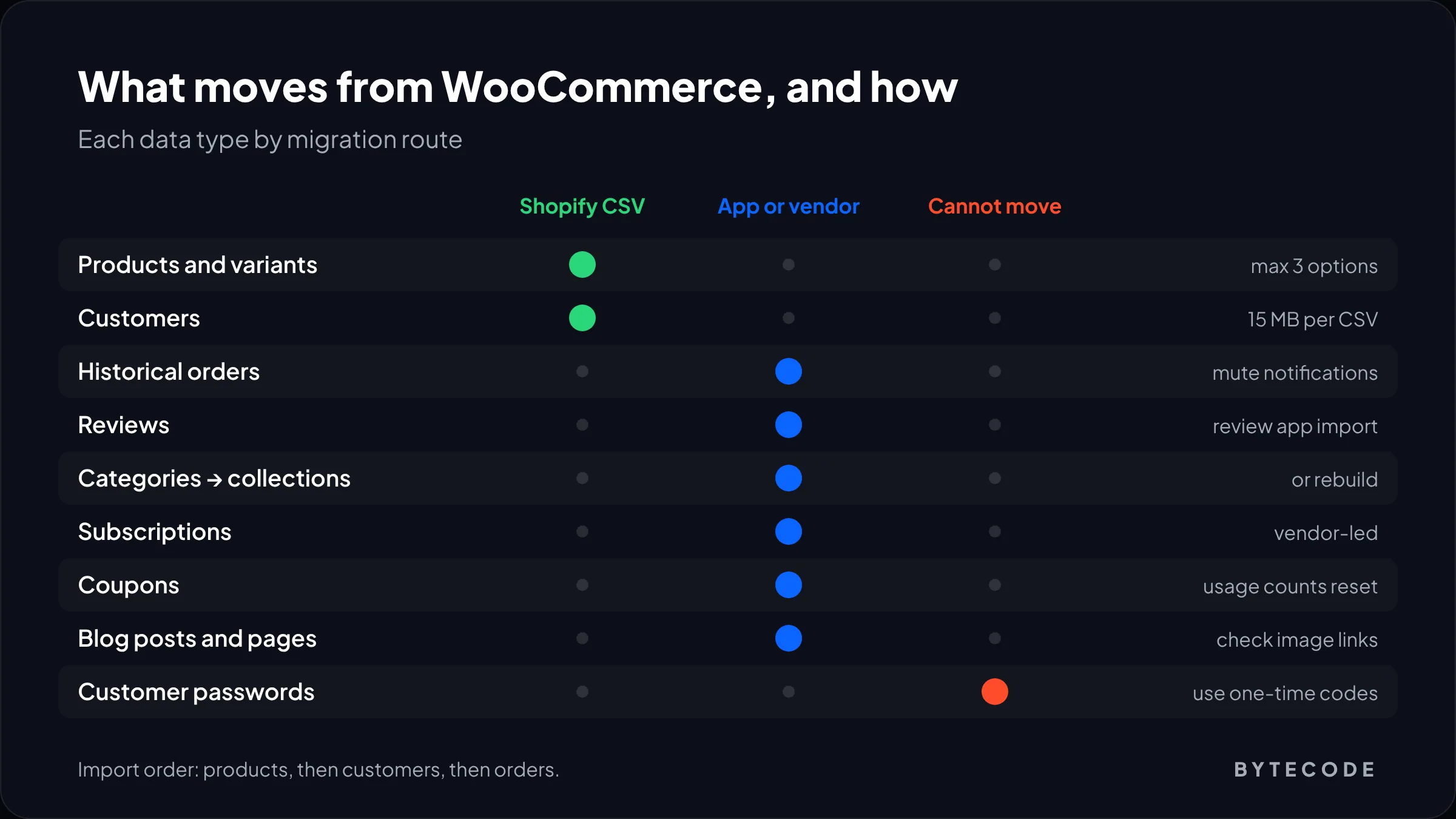
Products and customers move by CSV, orders and reviews need an app, and passwords cannot move at all. That is the short version of Shopify’s WooCommerce migration guide, which lists a native path for products and customers and points to third-party apps for orders and reviews. Here is the full map we use.
| WooCommerce data | Shopify destination | How it moves | Watch for |
|---|---|---|---|
| Simple and variable products | Products and variants | Product CSV or migration app | More than 3 attributes per product |
| Categories | Collections | App, or rebuild manually | Nested categories flatten |
| Tags and attributes | Tags, metafields, filters | App or scripted import | Filter setup in Search & Discovery |
| Customers and addresses | Customers | Customer CSV (15 MB per file) | Duplicate emails are skipped |
| Passwords | None | Cannot be migrated | Use one-time code sign-in |
| Orders | Historical orders | App only (Matrixify, LitExtension and similar) | Turn off order notifications first |
| Reviews | Review app | Review app import | Not exportable by Shopify’s tools |
| Coupons | Discounts | App or manual | Usage counts reset |
| Subscriptions | Subscription app contracts | Vendor-led migration | Payment method transfer |
| Posts and pages | Blog posts and pages | App or manual | Image links inside content |
| SEO titles and descriptions | SEO fields per item | App or CSV columns | Plugin data stored separately |
Phase 2: build the store and import in the right order
Import products first, then customers, then historical orders. Orders reference both, so loading them last is what keeps each order attached to the right product and customer. Build the theme, shipping, taxes and payments in parallel, on a store that stays password-protected until cutover.
Products
For a small catalog, Shopify’s native route works. Export from WooCommerce at Products > All Products > Export, copy the columns into Shopify’s product CSV template, and import at Products > Import. The mapping is mostly obvious: Name becomes Title, Description becomes Body (HTML), Regular price becomes Variant Price. Two details catch people out. Shopify’s guide says WooCommerce weight in pounds has to be converted to Variant Grams by multiplying by 453.6. And products with more than three options will not have their options imported, because Shopify allows three options per product.
Three options is the hard ceiling. Variants are not the problem any more: Shopify raised the limit to 2,048 variants per product for all merchants in October 2025. If a WooCommerce product uses size, colour, material and finish, you need to merge two attributes, move one to metafields or use an options app. Decide that per product family during the audit.
Above a few hundred products, we skip hand-edited CSVs and use a migration app. Matrixify imports directly from WooCommerce and lists its limits per file: the $20 a month Basic plan covers 5,000 products, 2,000 customers and 1,000 orders, the $50 Big plan covers 50,000 products, 20,000 customers and 10,000 orders, and Enterprise at $200 a month removes the caps.
Customers
Customer CSVs must be 15 MB or smaller, and the Email column is required. Per Shopify’s customer import docs, customers with duplicate emails or phone numbers are skipped, not merged. Dedupe guest-checkout duplicates first, and keep the Accepts Email Marketing column honest.
Orders, reviews and subscriptions
Shopify has no native order import. Use an app, and turn off staff new-order notifications first, or your team will get an email for every imported order. Reviews go through your review app’s own importer (Judge.me, Loox and Yotpo all have one). Subscriptions are the riskiest item on the list. Recharge’s WooCommerce migration process pulls subscriber data through WooCommerce API keys you provide and lets both systems run side by side during the switch, so no one is billed twice. Ask any app exactly how saved cards move before you set a launch date. We cover app choice in our Shopify subscriptions guide.
Watch out: if a subscription billing run falls during cutover, pause renewals in WooCommerce first. Duplicate charges cause chargebacks, and those cost far more than a one-day billing delay.
Shopify migration SEO: building the redirect map
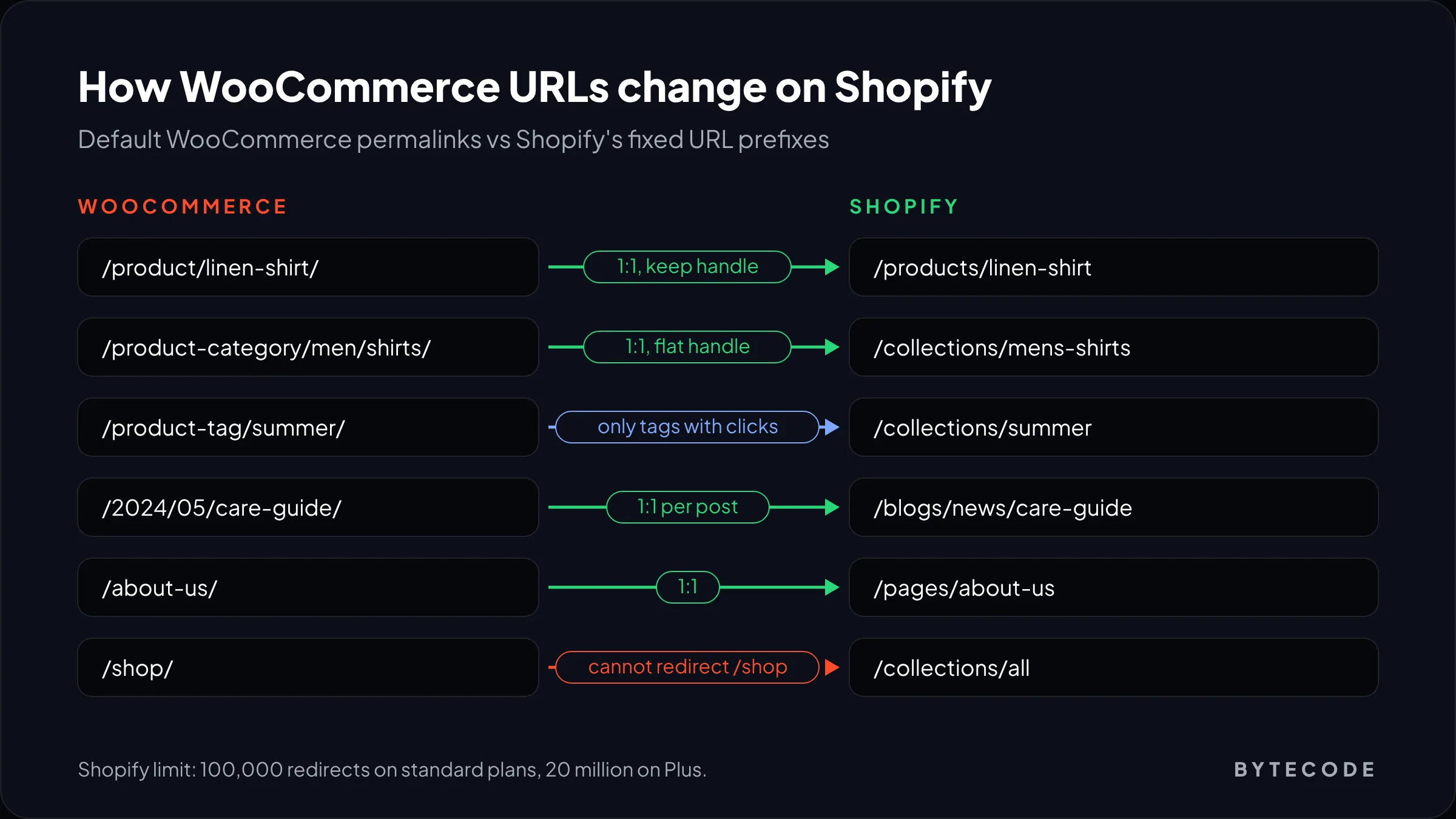
Shopify migration SEO comes down to one deliverable: a 301 redirect from every old URL that has traffic or links to its closest new equivalent. Shopify’s URL structure is fixed, so almost every WooCommerce product, category and post URL changes. There is no setting that keeps the old paths.
The WooCommerce permalink defaults are /product/, /product-category/ and /product-tag/. Shopify uses /products/, /collections/, /blogs/<blog>/ and /pages/. The common patterns:
| WooCommerce URL | Shopify URL | Redirect approach |
|---|---|---|
/product/linen-shirt/ |
/products/linen-shirt |
One-to-one, keep the handle |
/product-category/men/shirts/ |
/collections/mens-shirts |
One-to-one, new flat handle |
/product-tag/summer/ |
/collections/summer or parent collection |
Only tags with traffic |
/2024/05/care-guide/ |
/blogs/news/care-guide |
One-to-one per post |
/about-us/ |
/pages/about-us |
One-to-one |
/shop/ |
/collections/all |
Cannot redirect from /shop, see below |
/?p=123, /product/x/?attribute_pa_color=red |
Product page | Query strings are unreliable, test them |
Shopify’s redirect rules you have to design around
Per Shopify’s URL redirect documentation:
- Standard plans allow up to 100,000 redirects. Plus allows up to 20 million.
- A redirect only fires when the old URL is broken. If a live page answers at that path, the redirect is ignored.
- You cannot redirect from paths that start with
/shop,/cart,/orders,/appsand a few others. If your WooCommerce shop page lived at/shop/, that URL will not redirect. Link to the new collection from wherever/shop/was linked. - Collection tag URLs (
/collections/name/tag) cannot be redirected, and query-string redirects “might not work as expected.” - You can bulk import a CSV at Content > Menus > URL redirects > Import.
Worked example: sizing the redirect map
Here is a hypothetical store. Say a homeware brand has 1,400 product URLs (1,150 live, 250 discontinued that still get some traffic), 60 category URLs, 300 tag URLs of which 40 have clicks in Search Console, 180 blog posts and 20 pages. The redirect map is 1,400 + 60 + 40 + 180 + 20 = 1,700 rows. That is far under the 100,000 cap, so nothing has to be cut. The 260 tag URLs with no clicks are left to 404, and the 250 discontinued products go to their closest collection rather than the homepage. In our experience, blanket redirects to the homepage frustrate shoppers and pass little of the old page’s relevance, so they protect very little.
On timing, Google’s site move guidance says to keep redirects for at least a year, and that for a medium-sized site it can take a few weeks or more for new URLs to replace the old ones in results. The Change of Address tool is only needed if the domain itself changes. On a same-domain move like most WooCommerce migrations, you just submit the new sitemap.xml. For everything else on-page, see our Shopify SEO guide.
Moving off WooCommerce this year?
Send us your store URL and product count, and we will return a migration scope with a redirect count and timeline within two working days.
Customer accounts and passwords after the move
Customer passwords cannot move to Shopify. They are encrypted by WordPress, and Shopify’s import has no field for them. On older Shopify setups that meant mass account invites. In 2026 it is mostly a solved problem.
Shopify deprecated legacy customer accounts on February 26, 2026, and new stores cannot turn them on. The current accounts use an email address and a one-time code instead of a password. A customer imported with their email can simply sign in with that address and get a code. Their order history appears too, if you imported it.
Our take, against most migration checklists: skip the mass “reactivate your account” email. It reads like phishing and is no longer needed. Add one line to your first post-launch newsletter instead: “Sign in with your email, no password needed.”
Phase 4: the cutover runbook for launch week
Cutover is a sequence, not a moment. Run it on your quietest weekday, well clear of peak season, and keep WooCommerce read-only until DNS has switched.
- T-7 days: final content freeze on WooCommerce. Upload the redirect CSV to Shopify, since redirects only fire once the old URLs no longer exist on the new domain.
- T-3 days: full test orders on Shopify with real cards: a successful payment, a failed payment, a refund, a discount code and a gift card.
- T-1 day: lower the TTL on your DNS records so the switch spreads faster.
- Launch morning: put WooCommerce into maintenance mode, run the delta import of new orders and customers since the main import, then connect the domain in Shopify.
- Launch plus 1 hour: remove the storefront password, crawl the old URL list and confirm each one returns a 301 to a page that returns 200.
- Launch plus 1 day: submit
sitemap.xmlin Search Console, check analytics and ad pixels are recording purchases, and confirm transactional emails send from your domain.
From our team: keep a database export and a full file backup of WooCommerce for at least 90 days after launch. You will want it the first time someone asks for an invoice from 2021.
The Shopify migration checklist we use
This Shopify migration checklist is our sign-off sheet. Each line has a pass condition you can verify.
| Check | Pass condition | When |
|---|---|---|
| Product count | Shopify count matches WooCommerce active products, plus or minus documented exclusions | After import |
| Variant spot check | 20 random products: options, prices, SKUs and stock match | After import |
| Weights | Shipping rates at checkout match the old store for 5 test baskets | Before launch |
| Customer count | Imported total matches deduped export | After import |
| Marketing consent | Subscribed count matches the old opt-in list | After import |
| Taxes | Tax lines correct for your main regions on test orders | Before launch |
| Redirects | Every URL in the map returns 301 then 200, no chains | Launch day |
| SEO fields | Titles and meta descriptions present on top 100 organic pages | Before launch |
| Tracking | Purchase events recorded in analytics and ad platforms | Launch day |
| Subscriptions | Next billing dates and prices match for 10 sample subscribers | Before first renewal |
| 404 monitoring | New 404s reviewed and redirected daily | First 30 days |
After 30 days, compare organic clicks for your top 100 landing pages with the same pages before the move. Outliers usually mean a wrong redirect target or missing content.
Migration apps vs a migration partner
Apps move data. They do not make decisions. A small store with no subscriptions and simple URLs can manage with an app and a careful weekend. With custom plugins, subscriptions, B2B pricing or a large SEO footprint, the risk sits in planning, redirect logic and testing, and that is where a partner earns their fee.
- Shopify’s Store Migration app: free, products only, and currently in early access for some stores on desktop.
- Matrixify: imports most entity types from WooCommerce and handles redirects too. Best for teams comfortable with spreadsheets.
- LitExtension, Cart2Cart and similar: priced by records moved. Fine for the data, but the theme, apps and SEO checks stay with you.
- A migration partner: scopes, maps, builds, tests and runs cutover. Our Shopify store migration service covers all five phases, with strategy from Alpharetta and build hours in Mohali.
Still deciding? See our Shopify vs WooCommerce comparison.
Frequently asked questions
How long does a WooCommerce to Shopify migration take?
Most WooCommerce to Shopify migrations take 6 to 10 weeks for a store with a few hundred to a few thousand products. A small store with a standard theme and no subscriptions can move in 2 to 3 weeks. Custom design, subscriptions, ERP integrations and large blogs push it toward 3 months, mostly in the build and testing phases.
Will I lose SEO rankings if I move from WooCommerce to Shopify?
You will likely see some movement, but you should not lose rankings for good if every old URL with traffic has a 301 redirect to its closest new page. Google says new URLs can take a few weeks or more to replace old ones on a medium-sized site. Large drops usually come from missing redirects, redirects to the homepage or lost content.
Can I migrate customer passwords from WooCommerce to Shopify?
No. Passwords are encrypted and cannot be exported into Shopify. In 2026 this matters less, because new Shopify stores use customer accounts where shoppers sign in with their email and a one-time code. Imported customers sign in with the same email they used before, and no password reset is needed.
Can I migrate WooCommerce orders and reviews to Shopify?
Yes, but not with Shopify’s built-in CSV import. Historical orders need an app such as Matrixify or LitExtension, and reviews are imported through your review app, such as Judge.me, Loox or Yotpo. Turn off staff order notifications before importing orders, or every historical order will trigger an email.
How much does it cost to migrate from WooCommerce to Shopify?
A do-it-yourself migration can cost under $100 in app fees, since Matrixify’s Basic plan is $20 a month. A full agency-run migration with a theme rebuild, apps and redirects usually costs thousands of dollars, and the range depends mostly on the build scope and the team’s hourly rate. Ask for hours by phase so quotes are comparable.
Can I keep my WooCommerce URLs on Shopify?
No. Shopify uses fixed URL prefixes, such as /products/ for products and /collections/ for categories, so WooCommerce paths like /product/ and /product-category/ will change. You can keep the same product handle after the prefix, which makes redirects simple, and Shopify allows up to 100,000 redirects on standard plans.
What we’d do first
Start with the redirect map, not the theme. Export 12 months of pages from Search Console this week, merge it with a crawl, and count the rows. That number tells you how much SEO you are protecting, which tool you need and how long QA will take.
Then mark the three plugins customers would miss most. Those decide your app budget and build time. Everything else in a WooCommerce to Shopify migration is careful, repeatable work.
We have moved and built stores for brands like Kerbholz, MyHarry, Greatvacs and Medcline. If you want a second pair of eyes on your plan, or the whole move handled for you, talk to our WooCommerce to Shopify migration team.