On this page
- What a Shopify 2.0 theme changes, and what it leaves alone
- How to tell whether you need a vintage theme migration
- Do you need an online store 2.0 migration at all?
- The three paths for a Shopify theme upgrade
- Clean up app snippets in theme.liquid first
- Keeping URLs and SEO safe on an online store 2.0 migration
- What an online store 2.0 migration costs, and how long it takes
- QA and launch checklist for a vintage theme migration
- Frequently asked questions
- What we’d do first
Open your theme editor, pick Products > Default product, and look under the section list. No “Add section” button? Then your store is still on a vintage theme, and every new landing page, upsell widget or metafield-driven spec table goes through a developer. That is the moment most brands start asking about an online store 2.0 migration.
The short answer: an online store 2.0 migration moves your storefront from Liquid templates to JSON templates, so sections, app blocks and metafields work on every page. You can get there three ways: switch to a current theme, rebuild a custom one, or port your old theme file by file. None of them touches your products, customers, orders or URLs. What can cost you sales is the stuff hiding in your old theme: pasted app scripts, tracking code, alternate templates and SEO markup that nobody wrote down. This guide is how we handle that part.
Key takeaways
- Shopify’s free vintage themes only get security fixes now, and vintage themes are no longer sold in the Theme Store. The upgrade is optional, but the cost of staying grows every month you make changes.
- For most stores, moving to a well-built Online Store 2.0 theme beats porting the old one. Port only when the current design is genuinely good and heavily custom.
- Product URLs don’t change with a theme. Title tags, structured data, alternate templates and pasted tracking code can, so audit those before launch.
- Clean
theme.liquidbefore you migrate. Most old themes carry script tags from apps that were uninstalled years ago. - Budget roughly 40 to 450 hours depending on the path, which at the rate bands we use comes to about $1,000 to $90,000.
What a Shopify 2.0 theme changes, and what it leaves alone
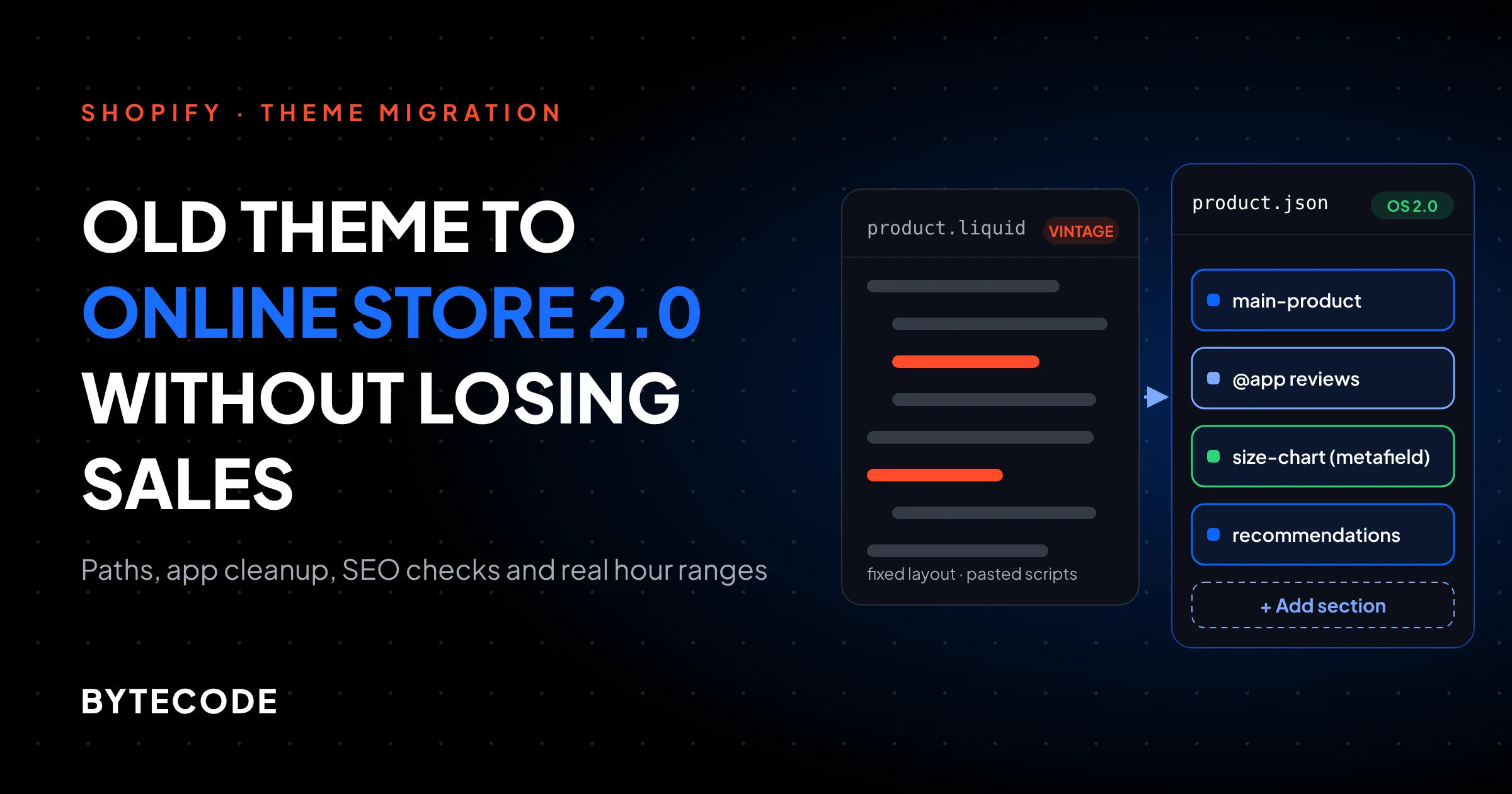
A Shopify 2.0 theme stores each page layout as data (a JSON template) instead of hard-coded Liquid, which is what lets you add, remove and reorder sections on any page in the editor. Shopify lists the core features in its Online Store 2.0 developer overview: JSON templates, sections on every page, dynamic sources for metafields, and app blocks.
JSON templates and sections everywhere
On a vintage theme, templates/product.liquid is a fixed file. Sections can exist, but only where the developer hard-wired them, usually the homepage. On 2.0, templates/product.json is a list of sections plus their settings. According to Shopify’s JSON template reference, a template can hold up to 25 sections with up to 50 blocks each, and a theme can have up to 1,000 JSON templates. That is why “sections everywhere” changes how marketing works: a launch template becomes an editor job, not a ticket.
App blocks and app embeds
Apps built on theme app extensions add their UI as blocks you place in the editor, and Shopify says those apps “don’t edit theme code.” Older apps did the opposite: they injected snippets or asked you to paste a script into theme.liquid.
Metafield dynamic sources
You can connect a text, image, rich text or product list setting straight to a metafield. The dynamic sources docs cap it at 100 connections per JSON template. On catalog-heavy stores this alone can justify the move: size charts and care notes stop living in product descriptions.
What does not change: your catalog, customer accounts, order history, checkout, Shopify Payments, domains, and the URL structure of products, collections and pages. Those belong to the platform, not the theme.
| Capability | Vintage theme | Online Store 2.0 theme |
|---|---|---|
| Add sections to product, collection, page templates | No (homepage only on sectioned themes) | Yes, up to 25 per template |
| Create extra templates in the editor | No, code only | Yes |
| App blocks placed in the editor | No | Yes |
| App embeds (Theme settings > App embeds) | Yes | Yes |
| Metafields connected without code | No | Yes, via dynamic sources |
| Native collection filtering and predictive search | No | Yes |
| Theme updates from Shopify | Security fixes only (free vintage themes) | Yes, for Theme Store themes |
The feature gaps in that table come from Shopify’s Help Center page on theme architecture versions, which also lists theme blocks and the Planet app as unavailable on vintage themes.
How to tell whether you need a vintage theme migration
The fastest check takes 30 seconds: go to Online Store, click Edit theme on your live theme, open Products > Default product, and look for an “Add section” button in the left sidebar. If it’s there, you’re on 2.0 or later. If it isn’t, you have a vintage theme. That is Shopify’s own test from the versions page linked above.
We also check the code, because the editor test can mislead on half-migrated themes. Open Edit code from the theme’s three-dot menu and expand Templates:
- Mostly
.jsonfiles (product.json, collection.json, page.json): a 2.0 theme. - Mostly
.liquidfiles (product.liquid, collection.liquid): vintage. - A mix: someone started a port and stopped. It is the hardest state to maintain.
- An empty Sections folder: a non-sectioned vintage theme, the oldest kind. Expect a rebuild rather than a port.
One more trap: premium themes from 2019 and 2020 often had a vintage major version and a later 2.0 major version under the same name. A store running “Prestige” or “Impulse” might be several major versions behind. Compare the version on your theme card with the one in the Theme Store first.
Do you need an online store 2.0 migration at all?
Not strictly. Shopify says plainly in the same developer overview that upgrading isn’t mandatory, and a vintage theme can keep selling. Our position is firmer: if anyone on your team edits the storefront more than once a month, migrate within the next two quarters.
Shopify’s theme update documentation says vintage themes have been sunset and aren’t updated by Shopify anymore. New apps increasingly ship only as app blocks. Every year you stay adds another layer of one-off code to move later.
When we’d tell you to wait:
- You’re mid-replatform or planning a full rebrand in the next 6 months. Do it once.
- Nobody touches layouts (say, a B2B parts catalog).
- Peak season starts in under 8 weeks. Never launch a theme into Black Friday traffic. Start in January.
The three paths for a Shopify theme upgrade
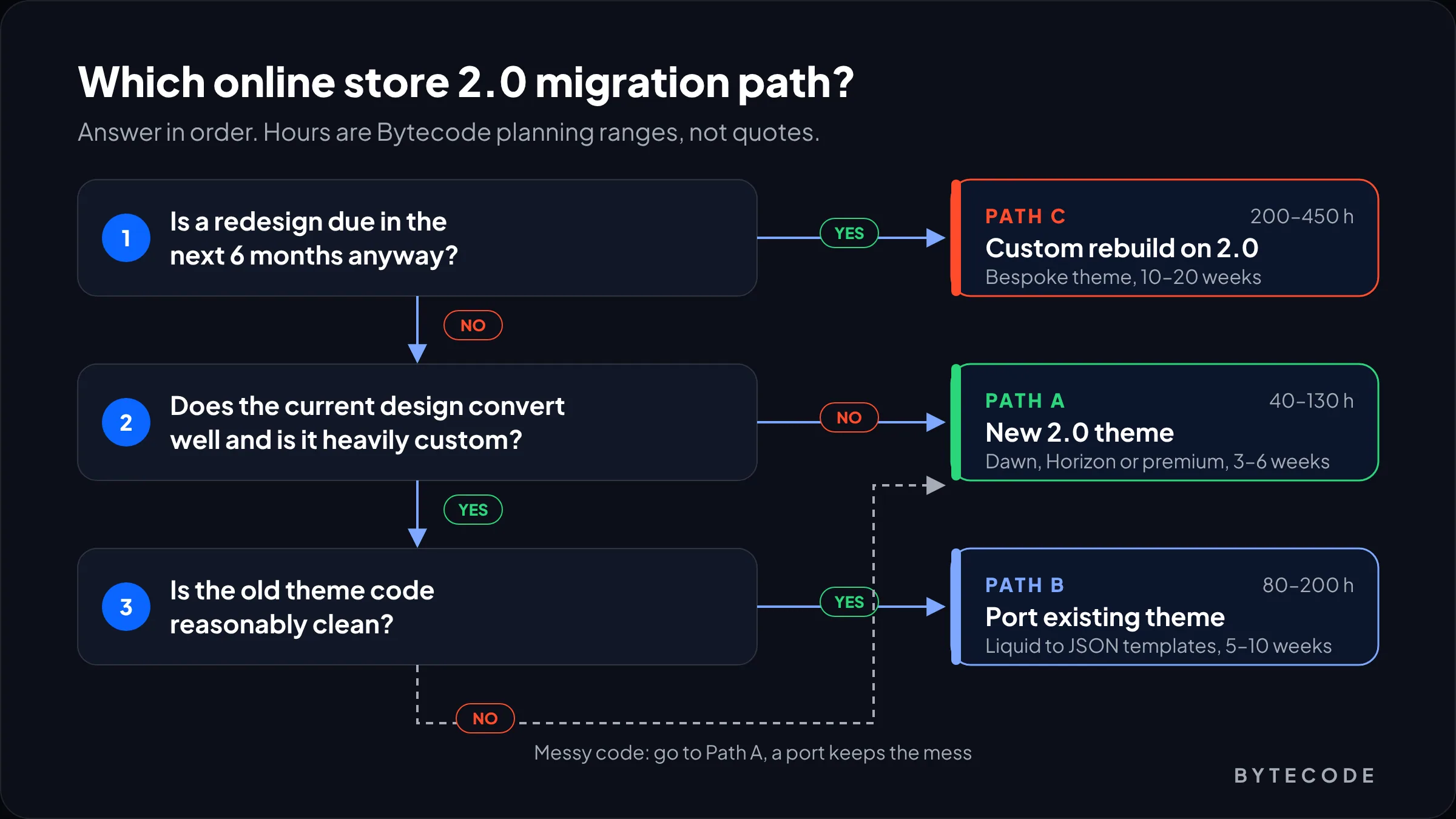
You have three ways to do a Shopify theme upgrade: install a current Online Store 2.0 theme and rebuild your customizations on it, build a custom 2.0 theme, or port your existing theme by converting templates to JSON.
Path A: move to a Dawn-based, Horizon or premium theme
This is our default. You start from a theme that is maintained, accessible and already fast, then rebuild only the customizations that earn money. Dawn and the newer Horizon family are free and made by Shopify. Premium themes add merchandising features (mega menus, quick buy, richer product media). We compare the current options in our roundup of the best Shopify themes.
The trade-off: the store will look different unless you pay to match the old design.
Path B: port your existing theme
Porting means converting each Liquid template to a JSON template and moving its markup into sections. Shopify’s template migration guide walks through product.liquid as the example. At its simplest, the new templates/product.json just points at the section that now holds your old markup:
{
  "sections": {
    "main": { "type": "main-product" },
    "recs": { "type": "product-recommendations" }
  },
  "order": ["main", "recs"]
}
Then you add {"type": "@app"} to the section’s blocks schema so app blocks can sit inside it. Two rules from the guide catch people out: a template can’t exist as both product.liquid and product.json at the same time, and app blocks aren’t supported in statically rendered sections.
We only recommend porting when the current design converts well, is heavily custom, and the code is reasonably clean. Porting a theme with five agencies’ worth of edits preserves the mess.
Path C: custom rebuild on 2.0
A bespoke theme built from design files, usually on a clean base. It costs the most and takes the longest. It makes sense when a redesign was due anyway. If that’s you, our guide on running a Shopify store redesign safely covers the design side, and our Shopify store revamp service is built around exactly this kind of project.
| A: New 2.0 theme | B: Port existing theme | C: Custom rebuild | |
|---|---|---|---|
| Best for | Most stores | Strong, custom, clean design | Brand-led stores due a redesign |
| Look after launch | Changes unless matched | Same | New |
| Future theme updates | Yes (Theme Store themes) | No, you own the code | No, you own the code |
| Main risk | Lost custom features | Carrying old bugs forward | Scope and timeline creep |
| Typical hours (our planning) | 40–130 | 80–200 | 200–450 |
From our team: on Path A, resist rebuilding every old customization. List each one, check whether anyone uses it (click maps help), and drop the rest. On most vintage stores we audit, several custom features are dead weight.
Clean up app snippets in theme.liquid first
Before any migration, audit every script tag and snippet include in layout/theme.liquid, because that file is where years of app installs leave code behind. Uninstalling an older app rarely removes the script someone pasted into the layout.
Pull a copy of the live theme locally with Shopify CLI, then search it:
shopify theme pull --theme 123456789 --path ./old-theme
grep -nE "<script|{%-? ?(include|render) " old-theme/layout/theme.liquid
grep -rlE "https://[a-z0-9.-]+.(js|css)" old-theme/snippets old-theme/sections
Then sort every hit into one of four buckets:
- Active app, now has an app embed or app block. Delete the pasted code and switch on the embed under Theme settings > App embeds in the new theme. Per Shopify’s app embed docs, embeds target the head or body, start switched off, and work on vintage and 2.0 themes alike.
- Active app, still needs pasted code. Ask the vendor for their 2.0 install method before you copy anything across.
- Uninstalled app. Don’t carry it over. Note the file names so nobody “restores” them later.
- Tracking code (GA4, Meta, TikTok pixels pasted by hand). Move it to Settings > Customer events or the official channel app, so the next theme change can’t break it.
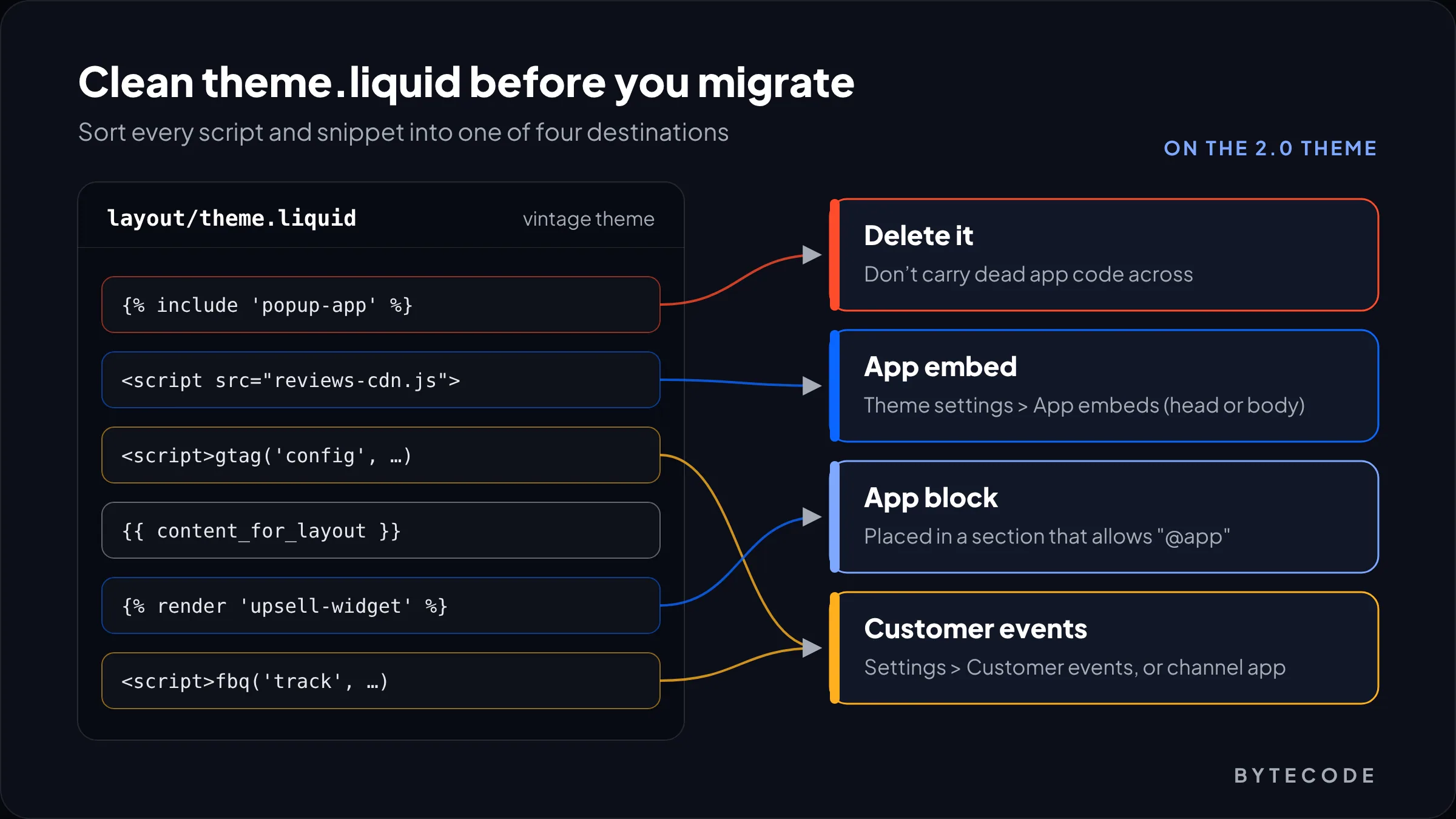
Watch out: the fourth bucket is where migrations quietly lose revenue data. The hand-pasted purchase pixel doesn’t come across, and ad platforms report a conversion drop that never happened. Test every pixel on the preview theme before you publish.
Keeping URLs and SEO safe on an online store 2.0 migration
An online store 2.0 migration doesn’t change your product, collection, page or blog URLs, so you usually need no redirects at all. SEO risk comes from what the theme outputs on those URLs. These are the items we diff between the old and new theme before launch:
- Title tags and meta descriptions. Many vintage themes build titles in
theme.liquidwith custom logic (appending the store name, adding page numbers). - Structured data. Product JSON-LD is often hand-coded in the old theme or injected by an SEO app. Make sure exactly one source outputs it in the new theme, then run the Rich Results Test on a product page.
- Alternate templates. Products assigned to
product.preorder.liquidfall back to the default template if noproduct.preorder.jsonexists. Recreate every alternate template with the same suffix before you publish. - Collection filter URLs. Older themes often filtered by tag with links like
/collections/shoes/red. If those pages earn traffic, keep them linked or redirect them on purpose. - Heading structure. Some themes demote the product title from H1 or add extra H1s.
- robots.txt.liquid. If you customized it, copy it over. It stays a Liquid template even on 2.0 themes, as do gift_card and the newer llms.txt and agents.md templates, per the JSON template reference.
If handles do change during the project (people often tidy product names at the same time), add redirects under Online Store > Navigation > URL redirects, ideally in a separate release from the theme. We cover the rest of the on-page basics in our Shopify theme customization guide.
Stuck on a vintage theme with years of custom code?
Send us your store URL and we’ll tell you which migration path fits, with an hour estimate, before you commit to anything.
What an online store 2.0 migration costs, and how long it takes
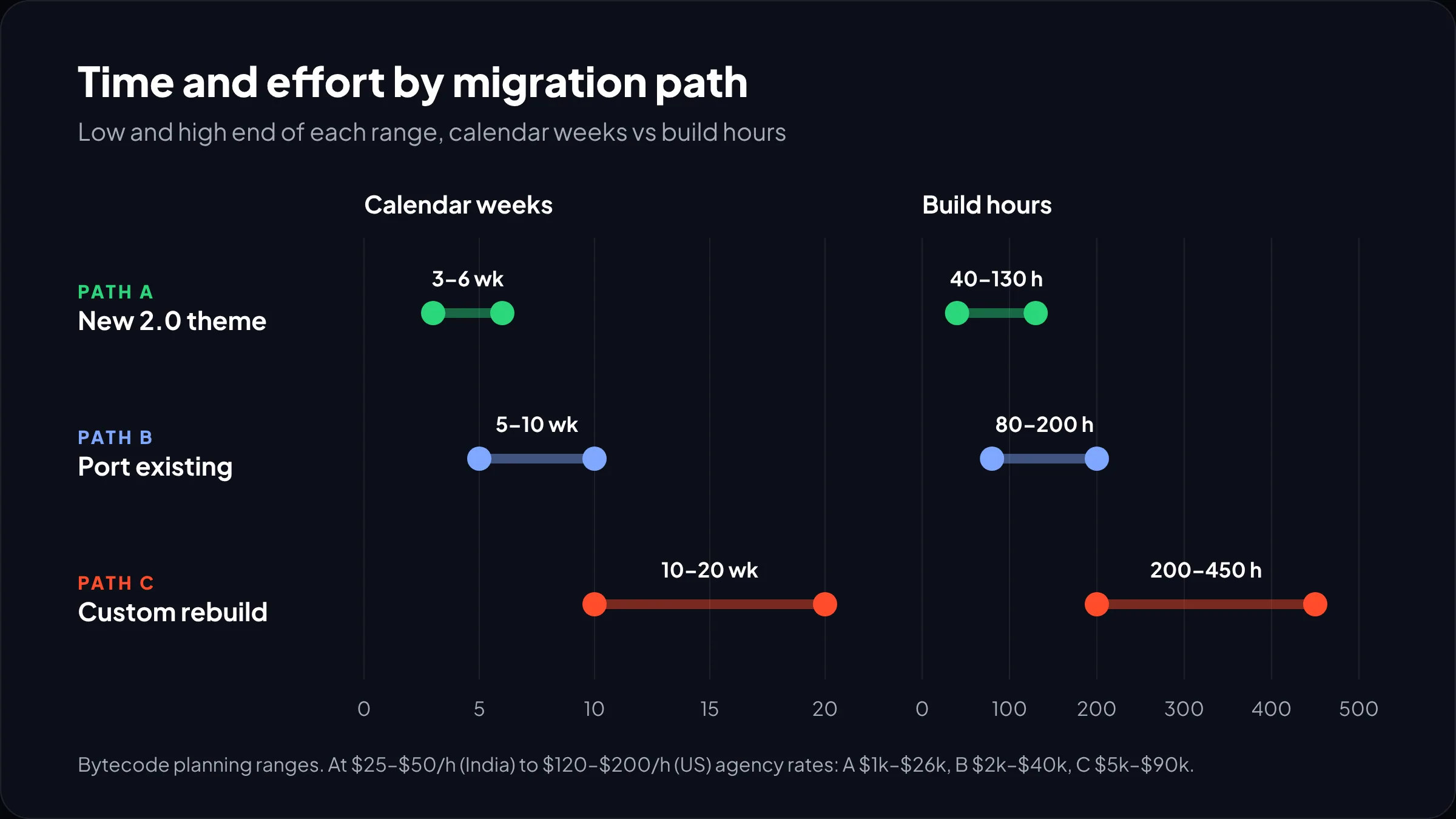
Expect 40 to 130 hours to move to a new theme, 80 to 200 to port an existing one, and 200 to 450 for a custom rebuild. These are our own planning ranges. Multiply by your team’s rate: using the agency bands we sourced in our Shopify development cost guide ($25 to $50 an hour in India, $120 to $200 in the US or Australia), the table below shows what that comes to.
| Path | Hours | Calendar time | India agency | US or Australia agency |
|---|---|---|---|---|
| A: New 2.0 theme | 40–130 | 3–6 weeks | $1,000–$6,500 | $4,800–$26,000 |
| B: Port existing theme | 80–200 | 5–10 weeks | $2,000–$10,000 | $9,600–$40,000 |
| C: Custom rebuild | 200–450 | 10–20 weeks | $5,000–$22,500 | $24,000–$90,000 |
Add a theme licence if you pick a paid theme. Real quotes vary wildly. In one Shopify Community thread from December 2023, a merchant had a $15,000 quote and a $650 quote (9 hours) for the same 2.0 upgrade of a custom theme. Partners replying doubted the 9 hours. We agree: 9 hours buys a theme install, not a migration.
Worked example: a customized vintage theme to a premium 2.0 theme
Here is a hypothetical, but typical, Path A project. Say an apparel brand runs a heavily edited Debut theme with 450 products, three alternate product templates, and 11 installed apps, four of which pasted code into theme.liquid. They pick a premium 2.0 theme and want six custom features rebuilt.
- Audit, app inventory and feature list: 10 hours
- Theme setup and brand styling: 24 hours
- Six custom features rebuilt as sections or blocks: 36 hours
- Three alternate templates plus metafield connections: 14 hours
- App cleanup and reinstall as embeds or blocks: 12 hours
- SEO parity checks (titles, JSON-LD, headings): 8 hours
- QA across devices and checkout: 16 hours
- Launch and two weeks of monitoring: 6 hours
That’s 126 hours, about six weeks. At $45 an hour it costs $5,670; at $150, $18,900. Cutting the custom features to three saves about 18 hours.
QA and launch checklist for a vintage theme migration
Build the new theme unpublished, test it in preview against a written checklist, publish in a low-traffic window, and keep the old theme as a one-click rollback. Here’s our list.
| Area | Check | How |
|---|---|---|
| Templates | Every alternate template exists and products still point to it | Spot-check products by template in the admin product list |
| Apps | Each active app renders: reviews, subscriptions, upsells, back-in-stock | Preview theme, app embeds panel, app blocks on PDP |
| Tracking | Purchase, add-to-cart and page view events fire once | Pixel helper extensions plus a real test order |
| Checkout path | Cart drawer, discount codes, gift cards, subscriptions reach checkout | Test orders on mobile and desktop |
| SEO | Titles, meta, canonical, JSON-LD, H1 match the old theme | Crawl 20 to 50 key URLs on both themes and diff |
| Speed | Core Web Vitals no worse than the old theme | Lighthouse on home, collection and product pages |
| Content | Size charts, banners, legal text and metafield content all moved | Page-by-page review with the merchandising team |
| Rollback | Old theme kept, unedited, in the theme library | Don’t delete it for at least 30 days |
For 14 days after launch, compare conversion rate, add-to-cart rate and organic clicks daily against the previous four weeks. A day-one dip is noise. A dip that holds for a week on one device type usually means a broken app block, not bad design.
From our team: once you’re on a Theme Store theme, Shopify copies editor customizations into theme updates, and code edits come along unless they conflict. Keep custom code in your own sections and snippets, and updates stay cheap. That is the long-term payoff of a vintage theme migration.
Frequently asked questions
Is Online Store 2.0 mandatory on Shopify?
No. Shopify says upgrading to Online Store 2.0 isn’t mandatory, and a vintage theme keeps working. The catch: Shopify’s free vintage themes only get security fixes, vintage themes aren’t sold in the Theme Store, and many newer apps ship as app blocks vintage themes can’t place.
How do I know if my Shopify theme is 2.0?
Open the theme editor, go to Products > Default product, and look for an “Add section” button in the sidebar. If it appears, your theme is Online Store 2.0 or later. If it doesn’t, it’s a vintage theme. You can confirm in Edit code: 2.0 themes keep product.json and collection.json in the Templates folder, while vintage themes use .liquid files.
Will changing my Shopify theme affect SEO?
Changing theme doesn’t change product, collection or page URLs, so rankings usually hold. Problems come from what the new theme outputs: different title tags, missing or duplicated product structured data, changed H1s, or alternate templates that fall back to the default. Compare these on your top URLs before you publish and watch Search Console for two weeks after.
How much does it cost to upgrade a Shopify theme to 2.0?
Most projects cost $1,000 to $26,000 when you move to a new 2.0 theme, depending on customization and your team’s rate. Porting an existing theme runs about $2,000 to $40,000, and a custom rebuild $5,000 to $90,000. Those figures come from our planning ranges of 40 to 450 hours multiplied by agency rates from India to the US.
How long does an online store 2.0 migration take?
Plan for 3 to 6 weeks to move to a new 2.0 theme, 5 to 10 weeks to port an existing theme, and 10 to 20 weeks for a custom rebuild. Content readiness and app vendor replies usually set the pace, not coding. Avoid launching within 8 weeks of peak season.
Will I lose my products or apps if I change my Shopify theme?
No. Products, customers, orders and app data live in Shopify and the apps, not in the theme, so they stay. What you can lose is theme-level setup: pasted app scripts, tracking codes, custom sections and alternate templates. Reinstall each app’s block or embed on the new theme, and move hand-pasted pixels to customer events.
What we’d do first
This week, run the 30-second editor check, then open theme.liquid and count the script tags. That count tells you more about the size of your online store 2.0 migration than anything else. List every customization, mark the ones that earn money, and pick the path. For most brands it’s Path A.
Then pick a launch date at least two months away from peak, build on an unpublished theme, and don’t publish until the checklist above is green. If you’d like a team that has done this on stores for brands like Kerbholz, Maker & Moss and Medcline, our Shopify store revamp team can scope it with you.