On this page
- Which Shopify GA4 setup should you use?
- What the Google & YouTube app sends to GA4
- Shopify customer events and custom pixels: where they fit
- Checkout extensibility tracking limits
- Consent Mode v2 on Shopify
- Duplicate purchases and other Shopify conversion tracking errors
- Why GA4 and Shopify reports never match (and how to reconcile them)
- Server-side tracking on Shopify: what’s worth paying for
- Shopify GA4 validation checklist
- Frequently asked questions
- What we’d do first
A store owner sends us two screenshots side by side. Shopify says October brought in $118,400. GA4 says $79,900. The question is always the same: which one is lying, and how much ad spend went to the wrong place because of it?
Usually neither is lying. A Shopify GA4 setup measures a narrower thing than Shopify’s own reports, so most of the gap is definitional. The real tracking problems tend to be a second tag nobody remembers adding, or consent handled badly. The plumbing also changed in mid-2026: Google now pulls Shopify purchases server-to-server, and the Google & YouTube app sends more events. Below is the setup we recommend in November 2026, what checkout and the pixel sandbox allow, how to wire Consent Mode v2, and the checklist we run before trusting any number.
Key takeaways
- Use the Google & YouTube app as the base layer. Google calls Google tags inside a Shopify custom pixel “not a supported implementation.”
- Since July 2026, purchases reach GA4 server-to-server through the app. The other events, including the four added on August 17, 2026, still come from the browser.
- GA4 purchase value is subtotal minus discounts. It leaves out shipping and tax, so it will never equal Shopify’s Total sales.
- Most duplicate purchases come from an old tag in
theme.liquidor a GTM custom pixel running alongside the app. Search for them before you buy anything. - Reconcile against comparable orders only. In our worked example, a 33% headline gap shrinks to about 8% once tax, shipping and non-checkout orders come out.
Which Shopify GA4 setup should you use?
For almost every store, the right Shopify Google Analytics 4 setup in 2026 is the Google & YouTube app connected to a GA4 web stream, with nothing else sending the same events. Add a custom pixel only for events the app does not send, and add a server-side layer only when you have a specific gap the app does not close.
Shopify’s own GA4 setup guide routes you through the Google & YouTube sales channel. Google has published a whole page on the limitations of using a custom pixel for conversion measurement on Shopify, recommending the app as the primary method and saying its support team can’t help with Google tags inside a custom pixel. When platform and vendor point the same way, fighting them costs hours every time something changes.
| Approach | Good for | What you give up | Our view |
|---|---|---|---|
| Google & YouTube app | Standard ecommerce events, server-side purchase, Google Ads conversions, enhanced conversions | Custom parameters, custom event logic, multiple Ads accounts without manual setup | Default for every store |
| Custom pixel with gtag or GTM (Settings > Customer events) | Extra events the app doesn’t send, non-Google vendors | GTM preview mode, Tag Assistant, enhanced measurement, Google support | Add-on only, never for the same events as the app |
Hard-coded gtag in theme.liquid |
Nothing that the app doesn’t already do | Checkout events entirely, plus clean consent handling | Remove it |
| Server-side layer (sGTM, tracking app, webhook sender) | Non-Google platforms, refunds, subscription renewals, enriched data | Money, maintenance and a new place for duplicates to appear | Only for a named gap |
Even for brands with a mature GTM setup and a dedicated analyst, we move core ecommerce events onto the app and keep GTM for the extras.
What the Google & YouTube app sends to GA4
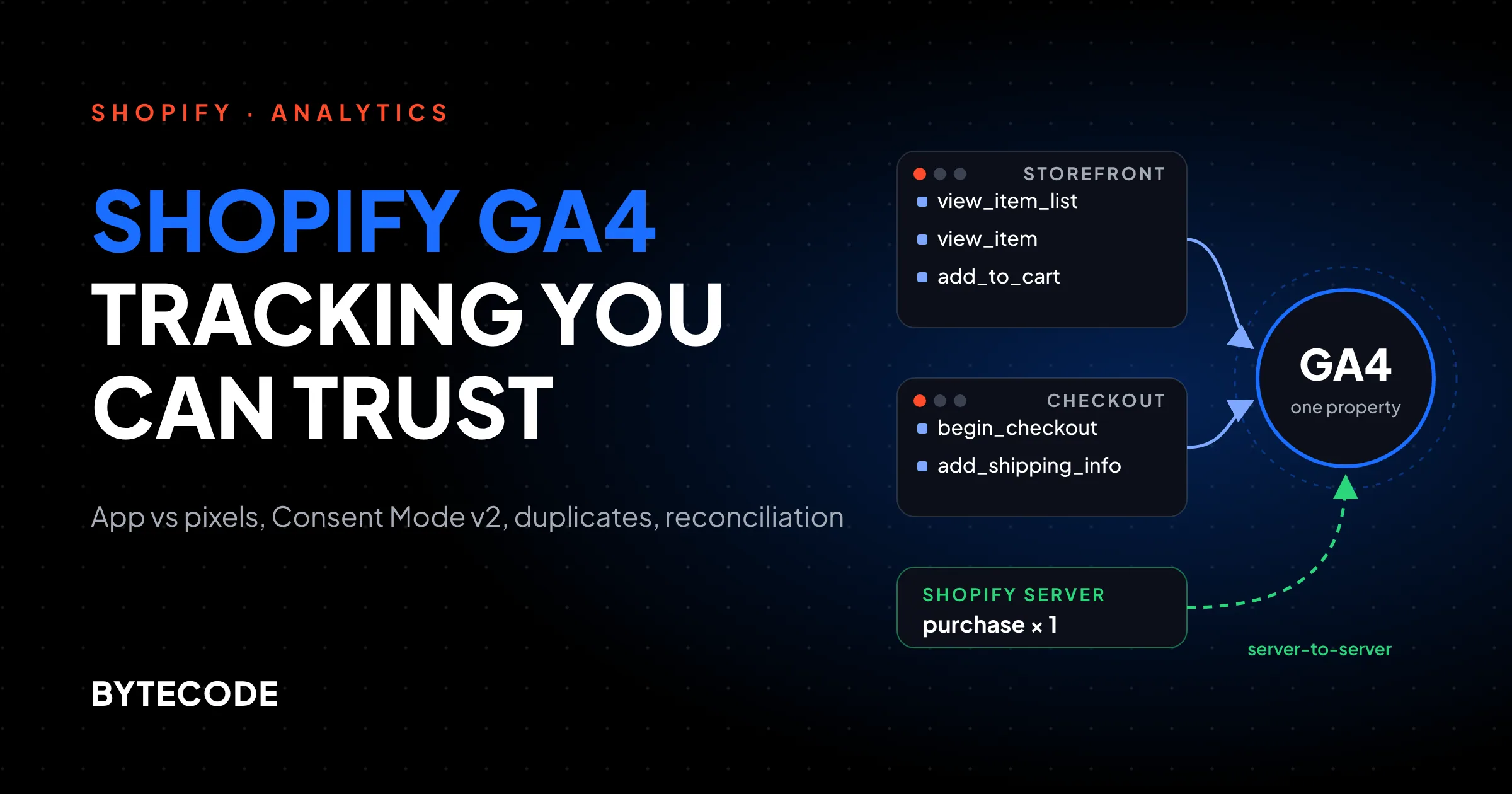
The app sends GA4’s standard ecommerce events from Shopify’s own event stream: page views, product views, collection views, cart actions, checkout steps, payment info and purchase. Google lists every event and parameter in its Shopify event parameter reference.
Two recent changes matter. First, from August 17, 2026 the app added view_item_list, remove_from_cart, view_cart and add_shipping_info. Google’s Shopify Google tag help page lists the four, and it also adds a shopify_event_name parameter you can filter on if the new events clutter your reports. Second, starting in July 2026 Google began receiving the purchase event directly from Shopify’s servers through its Data Manager API, on an opt-out basis. PPC Land’s reporting on both changes notes that only the purchase travels server-side. Everything else still depends on the browser.

The purchase value is not what you think
Per Google’s parameter reference, event value leaves out shipping and taxes, and from April 24, 2025 the purchase value is subtotal minus discounts. Shipping and tax travel as separate parameters. So GA4’s Purchase revenue can’t line up with Shopify’s Total sales, and was never designed to.
What the app won’t do
- Send custom events, such as a size-guide open.
- Split Shopify Markets into separate GA4 properties, or report subscription renewals and post-purchase upsells. PPC Land quotes Littledata’s founder flagging these gaps.
Shopify customer events and custom pixels: where they fit
Shopify customer events are the event bus that every pixel on your store subscribes to, and custom pixels are scripts you paste in under Settings > Customer events. They are the right home for a non-Google tag or a GA4 event the app doesn’t send. They are the wrong home for a second copy of your GA4 purchase tracking.
The technical reason is the sandbox. Shopify’s web pixel documentation says app pixels run in a strict sandbox (a web worker) and custom pixels run in a lax sandbox: an iframe that cannot reach the top frame. Inside a custom pixel, window.location points at the sandbox, not the page, and nothing can touch the DOM. Google’s limitations page lists what falls over as a result, including enhanced measurement, Tag Assistant, GTM preview mode and most GTM triggers.
We still write custom pixels for two jobs: a GA4 event the app lacks (never purchase), and bridging Shopify consent into GTM for non-Google tags. Keep them short and boring. Subscribe to named events rather than all_events, read page data from the event payload, and test with the Pixel Helper. Shopify’s custom pixel testing guide covers it: open the pixel in Customer events, click Test, and step through the store to checkout_completed with a test order.
Watch out: Shopify’s testing guide says Shopify doesn’t support custom pixels, and that consent, security and updates are on you. If a freelancer pasted a GTM container into Customer events two years ago, nobody owns that code today.
Checkout extensibility tracking limits
On checkout extensibility you can’t put your own script into checkout, the Thank you page or the Order status page. Tracking there comes only from pixels reading Shopify’s standard checkout events. Google’s limitations page puts it bluntly: Shopify is retiring checkout.liquid and additional scripts, the old ways of placing Google tags there.
Three consequences we see on audits:
- Old Thank-you-page scripts are dead weight. Don’t count on anything left in “Additional scripts” as a backup purchase tag.
- Checkout step detail depends on the upgrade. Google’s parameter reference notes that
add_shipping_infois only available where checkout extensibility is enabled. - Some post-purchase pages sit outside the pixel. A merchant in a Shopify community AMA reported their custom pixel never loaded on the Order status page under new customer accounts, which serve it from another domain. Test before you trust order-status data.
Our guide to Shopify checkout customization covers what extensions can do. For measurement, the purchase comes from checkout_completed, not from anything injected into the page.
Consent Mode v2 on Shopify
Consent Mode v2 tells Google tags what a visitor agreed to, using four signals: ad_storage, analytics_storage, ad_user_data and ad_personalization. If you sell into the EEA and skip it, Shopify’s customer privacy guide warns that event data from EEA customers won’t be used for personalized advertising.
Start in Settings > Customer privacy. Turn on the cookie banner for the regions you sell into (the region cards follow your Markets), or install a consent app that syncs choices to Shopify’s Customer Privacy API. That sync is the part people miss. Shopify’s testing guide says a third-party banner that doesn’t sync can leave pixels silent even after the visitor accepts.
Basic or advanced?
Per Google’s consent mode overview, basic mode blocks tags until the visitor answers the banner, and a denial sends nothing. Advanced mode loads tags with consent defaulted to denied and sends cookieless pings, so Google can model conversions from your own data. Advanced models better. Basic is easier to defend to a cautious legal team. Pick deliberately and write the choice down.
Mapping Shopify consent to Google signals
Shopify stores four flags per visitor and Google expects its own names, so a custom pixel that feeds GTM has to translate. There is no official mapping table, so here is the one we use. Practitioners disagree mainly on the preferences row.
| Shopify flag | Google consent signals |
|---|---|
analyticsProcessingAllowed |
analytics_storage |
marketingAllowed |
ad_storage, ad_user_data, ad_personalization |
preferencesProcessingAllowed |
functionality_storage, personalization_storage |
saleOfDataAllowed |
Not mapped. It is a US opt-out signal, not a consent grant. |
A stripped-down version of the custom pixel logic looks like this. Set the default first, then update on Shopify’s consent event:
const map = (c) => ({
  analytics_storage: c.analyticsProcessingAllowed ? 'granted' : 'denied',
  ad_storage:        c.marketingAllowed ? 'granted' : 'denied',
  ad_user_data:      c.marketingAllowed ? 'granted' : 'denied',
  ad_personalization: c.marketingAllowed ? 'granted' : 'denied'
});
gtag('consent', 'default', { ...map(init.customerPrivacy), wait_for_update: 500 });
api.customerPrivacy.subscribe('visitorConsentCollected', (e) => {
  gtag('consent', 'update', map(e.customerPrivacy));
});
The Google & YouTube app doesn’t need this. Shopify’s pixel docs say app pixels hold callbacks until consent in consent-required regions, then replay queued events.
From our team: the open question in late 2026 is how the new server-side purchase feed respects consent. PPC Land notes Google hasn’t clearly explained how Consent Mode or a consent tool fits that flow. Until it does, we document what we observe per store and keep the privacy lead informed.
Duplicate purchases and other Shopify conversion tracking errors
When GA4 shows more purchases than Shopify has orders, there is almost always a second sender. Google’s Shopify help pages say it repeatedly: check for duplicate tags and remove legacy ones. The usual suspects, in the order we check them:
- A hard-coded gtag in the theme. Open Online Store > Themes > Edit code and search
theme.liquidand snippets forG-,gtag(andgoogletagmanager. Old installs live here for years. - A GTM container in a custom pixel that also fires
purchaseoncheckout_completed. - A tracking app (Elevar, Littledata, Stape and similar) sending purchase server-side, now alongside the app’s own server-side purchase.
- Two GA4 data streams on the same property, or the same Tag ID entered twice in the app’s Settings > Google tags.
To prove it, build a free-form exploration in GA4 with Transaction ID as the dimension and Event count as the metric, filtered to purchase. Any ID with a count above 1, or rows with an empty ID, tell you where to look. Duplicates with different IDs are the worst kind: GA4 can only collapse what it can match.
Not sure which of your tags is sending that second purchase?
We’ll audit your Shopify GA4 setup, theme code, custom pixels and consent wiring, and send back a written fix list.
Why GA4 and Shopify reports never match (and how to reconcile them)
GA4 and Shopify count different things. Shopify records every order in its database. GA4 records events that reached it, valued without shipping or tax, limited to orders that went through the online store checkout. Reconcile like-for-like, and most of the scary gap disappears.
The gaps that are definitional, not errors:
- Tax and shipping. Excluded from GA4 purchase value by design.
- Orders with no storefront checkout. Subscription renewals, draft orders, POS sales and many marketplace orders never fire
checkout_completed. - Refunds. Shopify nets them out. GA4 only does if something sends a refund event.
- Time zone. Match the GA4 reporting time zone (Admin > Property details) to Shopify’s, or late-night orders shift days.
- Attribution. Different rules, so channel totals differ even when order totals match.
Real data loss comes from denied consent under basic mode and blocked scripts. Server-side purchase recovers some of it, for purchase only.
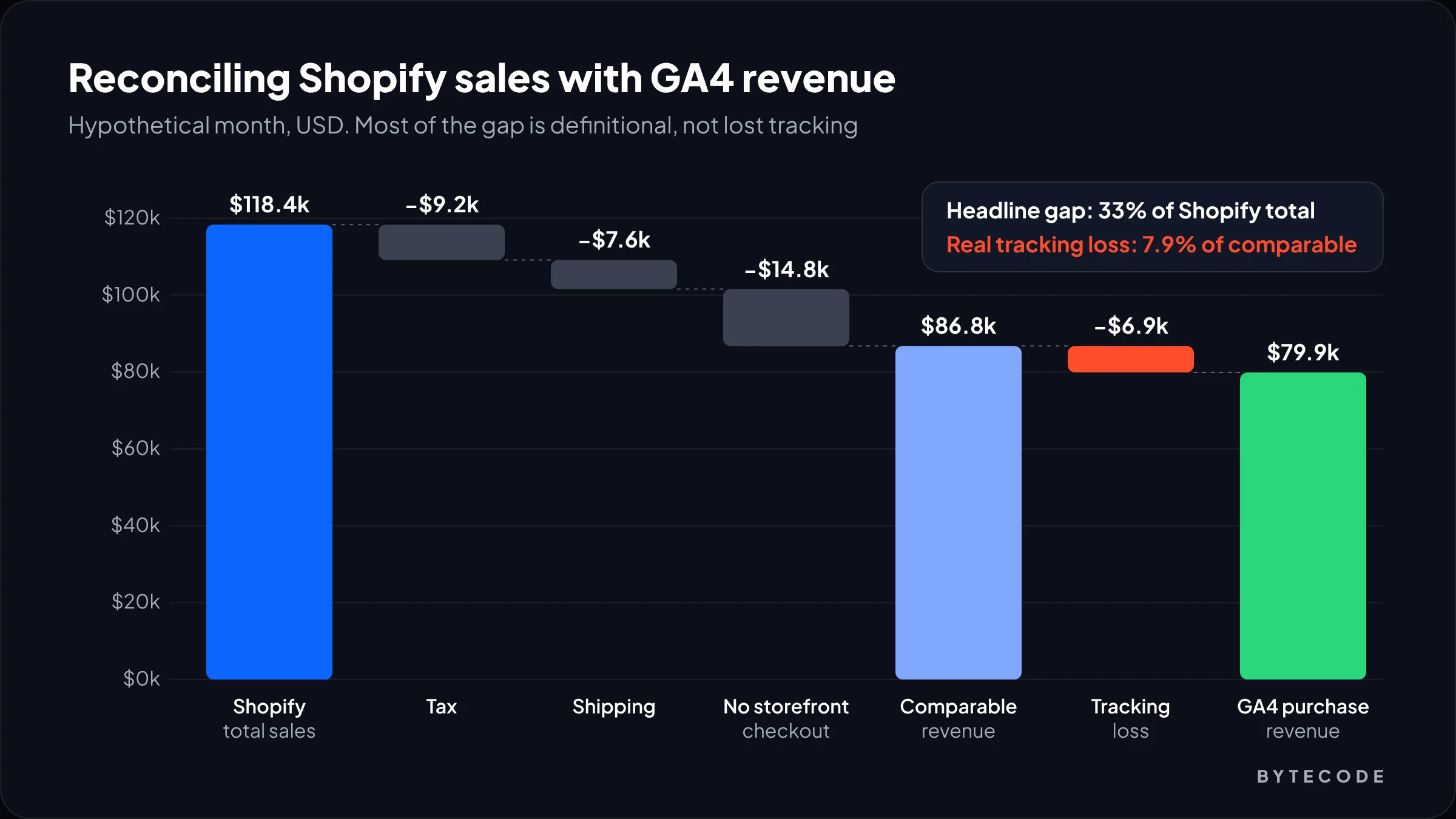
Worked example: one month, reconciled
A hypothetical month for a store with a subscription line and a small wholesale channel. The numbers are illustrative.
| Step | Amount | Running total |
|---|---|---|
| Shopify Total sales, all channels | $118,400 | $118,400 |
| Less tax | −$9,200 | $109,200 |
| Less shipping | −$7,600 | $101,600 |
| Less orders with no storefront checkout (renewals, draft and wholesale orders) | −$14,800 | $86,800 |
| Comparable revenue GA4 should see | $86,800 | |
| GA4 purchase revenue reported | $79,900 | |
| Unexplained gap | $6,900 | 7.9% of comparable |
The headline difference was 33%. The real tracking loss is under 8%, and that is the only number worth chasing. Our rule of thumb: single digits on comparable orders is acceptable once consent is wired; above 15%, something is broken.
Once the numbers reconcile, you can trust GA4 for what it’s good at: funnel drop-off, landing page quality and channel comparison. That is the data our Shopify conversion rate optimization work starts from, and it’s also how you sanity-check your store against average Shopify conversion rate benchmarks.
Server-side tracking on Shopify: what’s worth paying for
Server side tracking on Shopify used to mean paying a vendor to get purchases into GA4 reliably. Since July 2026, the Google & YouTube app does that part for free. Paid server-side setups now earn their cost only for things the app doesn’t cover.
Your realistic options:
- The app’s built-in server purchase. Zero work, Google platforms only, purchase only. Start here.
- A tracking app with server delivery. Worth it if you need Meta or TikTok conversion APIs fed from one source, or refunds and renewals in GA4.
- Server-side GTM. Flexible, but you own hosting, updates and consent logic. Only for teams with an analyst to maintain it.
- A custom webhook sender. An app listening to order webhooks and posting to Google. Google’s own Shopify feed runs on its Data Manager API, per PPC Land, so that is where we’d build a new sender rather than the older Measurement Protocol.
Whatever you add, keep one source per event per destination. If a vendor sends purchase server-side, disable its GA4 purchase or confirm both use the Shopify order ID as transaction_id. Server-side events also need the browser’s GA4 client ID, or the revenue lands in GA4 without its channel credit.
From our team: on stores under roughly a few hundred orders a month we usually skip paid server-side tooling entirely. The app’s server purchase plus clean consent gets most of the value, and the budget does more in creative or CRO.
For brands that need GA4 joined with Shopify, ad platform and subscription data in one model, that’s the work our Shopify intelligence solutions team does.
Shopify GA4 validation checklist
Run this after any change that touches tracking. It takes under an hour.
- Inventory every sender. The app, each row in Settings > Customer events, theme code hits and tracking apps.
- Confirm the app connection. In Sales channels > Google & YouTube > Settings, check the GA4 property and Tag ID are the ones you expect.
- Check time zone and currency in GA4 property details against Shopify.
- Accept consent and browse. In incognito, accept the banner, then walk from a collection to checkout while watching GA4 DebugView for each funnel event.
- Place a test order with a discount code and paid shipping. Confirm one
purchasewith the Shopify order number as transaction ID, and a value equal to subtotal minus discount. - Repeat with consent denied. Under basic mode, nothing should reach GA4. Under advanced, you should see cookieless pings only.
- Reload the Thank you page. No second purchase should appear.
- Mark purchase as a key event in GA4 (Admin > Events) and confirm Google Ads imports the app’s conversion as primary, not a legacy one.
- Exclude internal traffic in the data stream’s tag settings.
- Reconcile a full week like the worked example, then monthly.

Frequently asked questions
How do I connect Google Analytics 4 to Shopify?
Install the Google & YouTube app, sign in with the Google account that owns your GA4 property, and connect your web data stream in the app’s settings. Shopify then sends standard ecommerce events automatically. Remove the online store password first, because GA4 can’t track a store in private mode, and don’t add a second GA4 tag in your theme.
Why is GA4 revenue lower than Shopify sales?
Mostly because they measure different things. GA4 purchase value is subtotal minus discounts, without shipping or tax, and it only sees orders placed through the online store checkout. Shopify’s total includes tax, shipping, subscription renewals and draft orders. Remove those from the Shopify figure before judging the gap, and what remains is your real tracking loss.
Why does GA4 show duplicate purchases on Shopify?
Duplicate purchases nearly always mean two tags send the same order. The usual causes are an old gtag snippet in theme.liquid, a GTM container in a custom pixel, or a tracking app sending purchase alongside the Google & YouTube app. Check a GA4 exploration by Transaction ID for counts above one, then remove the extra sender.
Can I use Google Tag Manager on Shopify checkout?
Not directly. With checkout extensibility you can’t add scripts to checkout pages, so GTM can only run inside a custom pixel, where it reads Shopify’s checkout events in a sandbox. Google calls this unsupported, and features like preview mode and Tag Assistant may not work. Use the Google & YouTube app for core GA4 events.
Does Shopify support Google Consent Mode v2?
Yes, through its customer privacy settings and the pixel framework. Turn on the cookie banner under Settings, Customer privacy, or use a consent app that syncs with Shopify’s Customer Privacy API. App pixels, including the Google & YouTube app’s, wait for that consent. Custom pixels running gtag or GTM need a manual snippet that maps Shopify consent to Google’s consent signals.
Do I need server-side tracking for Shopify GA4?
Usually not for GA4 alone. Since July 2026 the Google & YouTube app sends purchases to GA4 server-to-server on its own. Paid server-side tools make sense when you also need Meta or TikTok conversion APIs, refund events, subscription renewals, or custom data the app doesn’t send. Start with the app and add server-side only for a specific gap.
What we’d do first
Open your theme code and Customer events today and count how many things send a GA4 purchase. If the answer is more than one, fix that before anything else, because every report downstream inherits the error.
Then wire consent, run the test order, and reconcile one week against comparable orders. Only if a real, nameable gap remains should you look at server-side tooling.
We’ve built Shopify stores for brands like Delsey, EcoFlow and Kerbholz. If you want your GA4, Shopify and ad data reconciled into numbers your team agrees on, our Shopify analytics and intelligence team can take it from audit to dashboard.